


IPMI ISO Mount Guide – Remote OS Installation on Dedicated Root Servers (menkiSys)
ISO Images via IPMI – Remote Installation on menkiSys Root Servers
All dedicated menkiSys root servers include an integrated IPMI web interface (Intelligent Platform Management Interface), allowing you to manage your server remotely at any time. This out-of-band management interface uses its own dedicated network port, which is located above the USB ports on Supermicro mainboards.
The IPMI system provides a powerful management interface for remote installation, maintenance, rebooting, and full server control independently of the installed operating system.
To access the IPMI web interface, you must first connect from your location to the menkiSys network via L2TP over IPsec (VPN connection). As a root server customer, you have already received the corresponding access credentials in a separate email.
Please first connect to the menkiSys VPN network.
After that, open the following URL in your browser:
https://10.10.15.XX (please replace the last two digits with your individual IPMI IP address)
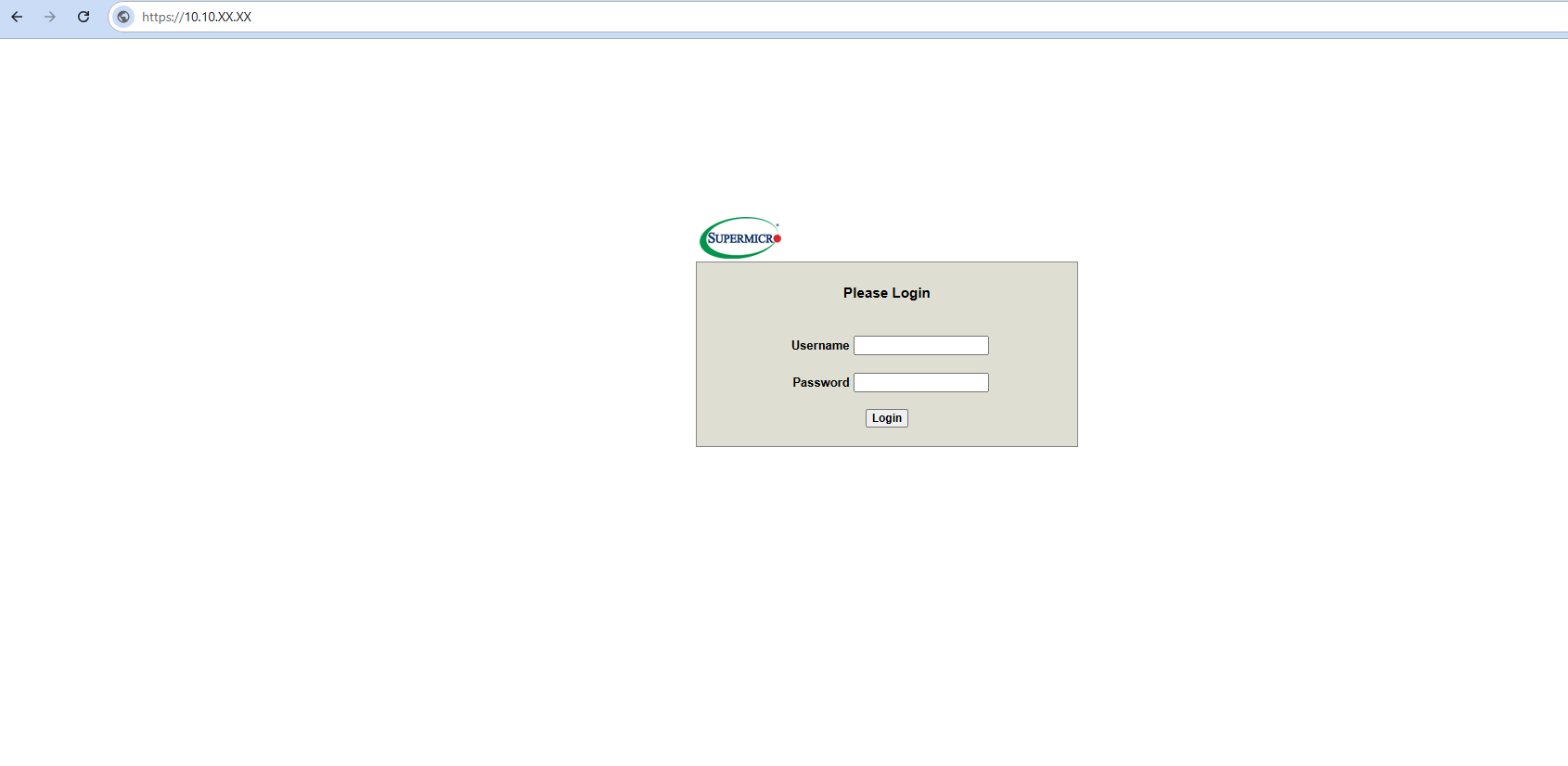
Please enter your login credentials to sign in to the IPMI web interface.
After logging in, navigate in the top menu to “Virtual Media” → “CD-ROM Image” to open the ISO mounting menu.
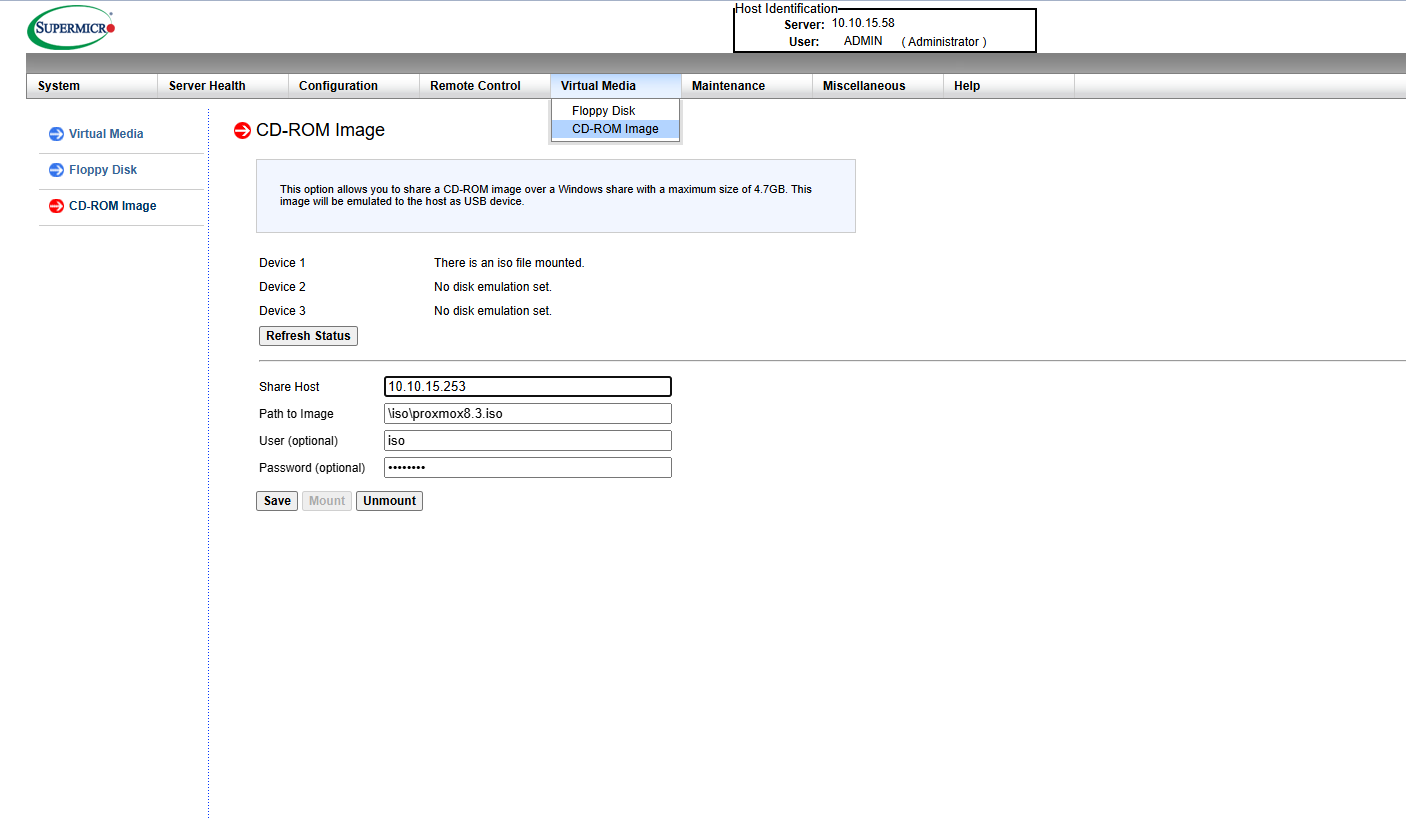
To load an ISO image directly from the menkiSys network, enter the following values:
Share Host IP: 10.10.15.253
Path: \iso\NAME_OF_THE_ISO_FILE
You have received the credentials for the network ISO archive (read-only access) in the email titled “IPMI - VPN access to your server”. Then click the “Save” button to store the settings. Immediately afterwards, click “Mount” to load the desired ISO image.
After that, reboot your server and press F11 multiple times during the boot process to open the boot menu. There, select the previously mounted ISO image UEFI (ATEN-CDROM-VIRTUAL) as the boot device so that the server starts from it.
Note: Booting from an ISO image mounted over the network may take several minutes.
The following ISO images are available:
- \iso\esxi-8.0.iso
- \iso\almalinux94.iso
- \iso\debian12.iso
- \iso\debian13.iso
- \iso\proxmox8.3.iso
- \iso\proxmox9.1.iso
- \iso\rocky94.iso
- \iso\ubuntu22-lts.iso
- \iso\ubuntu24-lts.iso
- \iso\windows2019.iso
- \iso\windows2022.iso
- \iso\windows2025.iso
Using the IPMI web interface, you can fully manage your server remotely, including installation, rebooting, powering on, and shutting down. After successfully installing your server with the desired image, you must unmount the ISO image again so that the newly installed operating system can boot normally.
menkiSys Team