


How to Establish an SSH Connection to a Linux Server – Step-by-Step Guide (Secure Shell Access)
An SSH (Secure Shell) connection enables secure remote access to your Linux server via command line. It is the industry-standard protocol for server administration, automation, and secure communication.
1. Verify Required Credentials (Access Layer)
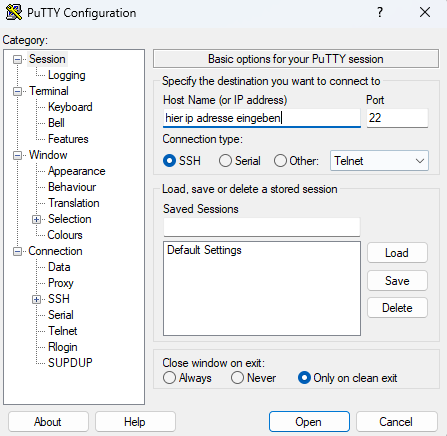
Before connecting, ensure you have the following:
- Public IP address of the server
- Username (e.g., root or a standard user)
- Password or SSH private key
- Optional: SSH port (default: 22)
2. Firewall & Network Requirements (Connectivity Layer)
For a successful SSH connection, the following port must be open:
- TCP Port 22 (default SSH port)
If your server uses a custom SSH port, this must be allowed instead.
Note: Many corporate networks or public Wi-Fi environments block SSH by default. If so, the connection will fail until outbound access is permitted.
3. Connect from Windows (Command Line / Terminal)
Modern Windows systems (Windows 10/11) include a built-in SSH client.
Steps:
- Open Command Prompt or PowerShell
-
Execute the following command:
ssh username@IP_ADDRESSExample:
ssh root@192.168.1.10 -
If a custom port is used:
ssh username@IP_ADDRESS -p PORTExample:
ssh root@192.168.1.10 -p 2222 -
Confirm the fingerprint (first connection only) by typing:
yes - Enter your password
4. Connect using macOS or Linux
SSH is pre-installed on macOS and Linux systems.
Steps:
- Open Terminal
-
Run:
ssh username@IP_ADDRESS - Accept the fingerprint (first connection)
- Enter your password
5. Connect using SSH Key (Recommended for Professional Use)
Instead of passwords, SSH keys provide higher security.
Command example:
Example:
6. Connect via Mobile Devices
For mobile access:
- iOS: Apps like Termius or similar SSH clients
- Android: Apps like JuiceSSH or similar
Setup is identical: IP address, username, password or key
7. Common Issues and Troubleshooting
If the connection fails, verify:
- TCP Port 22 is blocked by your firewall
- Incorrect IP address or login credentials
- SSH service is not running on the server
- Wrong port specified
- Network restrictions (e.g., corporate firewall)
8. Performance & Stability Notes
- SSH requires minimal bandwidth and is highly efficient
- Stable internet connection recommended
- Latency impacts responsiveness (especially for remote administration)
Conclusion (Executive Summary)
SSH is the standard protocol for secure remote access to Linux servers. With proper credentials, open network ports, and a reachable server, a connection can be established within seconds. For enterprise-grade environments, SSH key authentication is the preferred method due to enhanced security and automation capabilities.