


How to Establish an RDP Connection to a Windows Server – Step-by-Step Guide (Remote Desktop Access)
Remote Desktop Protocol (RDP) connection allows you to securely access your Windows Server as if you were sitting directly in front of it. Below is a clear, production-ready guide for establishing a successful connection.
1. Verify Required Credentials (Access Layer)
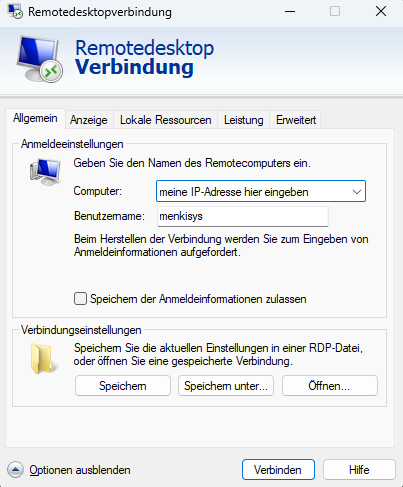
Before initiating the connection, ensure you have the following details:
- Public IP address of the server
- Username (e.g., Administrator)
- Password
- Optional: RDP port (default: 3389)
2. Firewall & Network Requirements (Connectivity Layer)
To enable a successful connection, the following port must be open in your local network/firewall:
- TCP Port 3389 (default RDP port)
If a custom port is used, ensure that this port is allowed instead.
Note: In corporate networks, hotels, or public Wi-Fi environments, RDP is often blocked by default. In such cases, the connection will fail until the port is explicitly permitted.
3. Connect from a Windows Device
Steps:
- Press
Windows Key + R -
Enter the following command:
mstsc - Press Enter
-
In the “Computer” field, enter:
IP_ADDRESSor with custom port:
IP_ADDRESS:PORTExample:
192.168.1.10 - Click “Connect”
- Enter your login credentials
4. Security Warning on First Login
During the first connection, you may receive a certificate warning.
This is expected behavior. Confirm the connection by selecting “Connect anyway” if the server details are correct.
5. Connect from macOS
- Download Microsoft Remote Desktop from the App Store
- Open the application and select “Add PC”
- Enter the IP address and optional port
- Provide username and password
- Initiate the connection
6. Connect via Smartphone or Tablet
For mobile access:
- Use the Microsoft Remote Desktop app (iOS / Android)
- Setup process is identical to macOS
- Suitable for remote administration and quick access scenarios
7. Common Issues and Troubleshooting
If the connection fails, validate the following:
- TCP Port 3389 is blocked by your firewall
- Incorrect IP address or login credentials
- Server is not reachable or offline
- Incorrect port specified
- Network environment is restricting RDP traffic
8. Performance Recommendations
For optimal performance:
- Stable internet connection (minimum 10–20 Mbps recommended)
- Prefer wired connection over Wi-Fi
- Reduce visual effects in RDP settings if needed
Conclusion (Executive Summary)
RDP is the industry-standard method for accessing Windows Servers remotely. With proper network configuration, valid credentials, and an open TCP port, the connection can be established within seconds and used for full administrative control of your server environment.