


Windows Server 2022/2025 Trial Period – Duration, Extension & Licensing Guide
Windows Server 2022/2025 Trial Period – Duration, Extension & Licensing Guide
After installing your Windows Server 2022/2025 operating system on your menkiSys dedicated root server, you can use the system with a 180-day trial license. Shortly before this period expires (typically 1–7 days prior), you can easily extend the trial for another 180 days using a simple PowerShell command.
If the trial license is not extended in time, the server will automatically shut down as part of Microsoft’s licensing mechanism. In such a case, you can restart your server at any time via your IPMI interface (KVM console) and extend the trial license with a single command.
Detailed instructions are provided below in this guide.
click
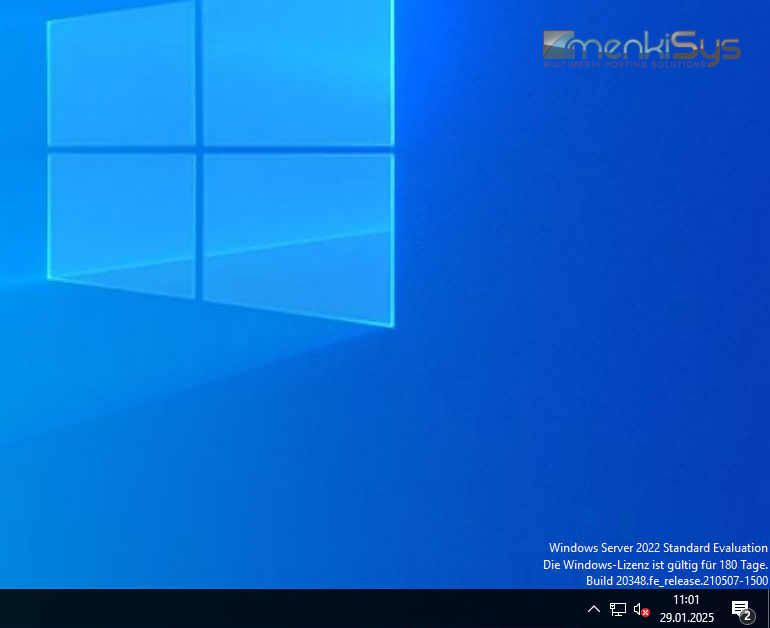
You can check when your Windows Server 2022/2025 trial license expires directly on your desktop (bottom right corner). If the expiration date is not displayed, you can verify it at any time using the following PowerShell command:
slmgr -dlv
This command provides detailed licensing information, including the remaining trial period. The key advantage: you can extend the trial period multiple times – up to a total duration of 3 years.
click
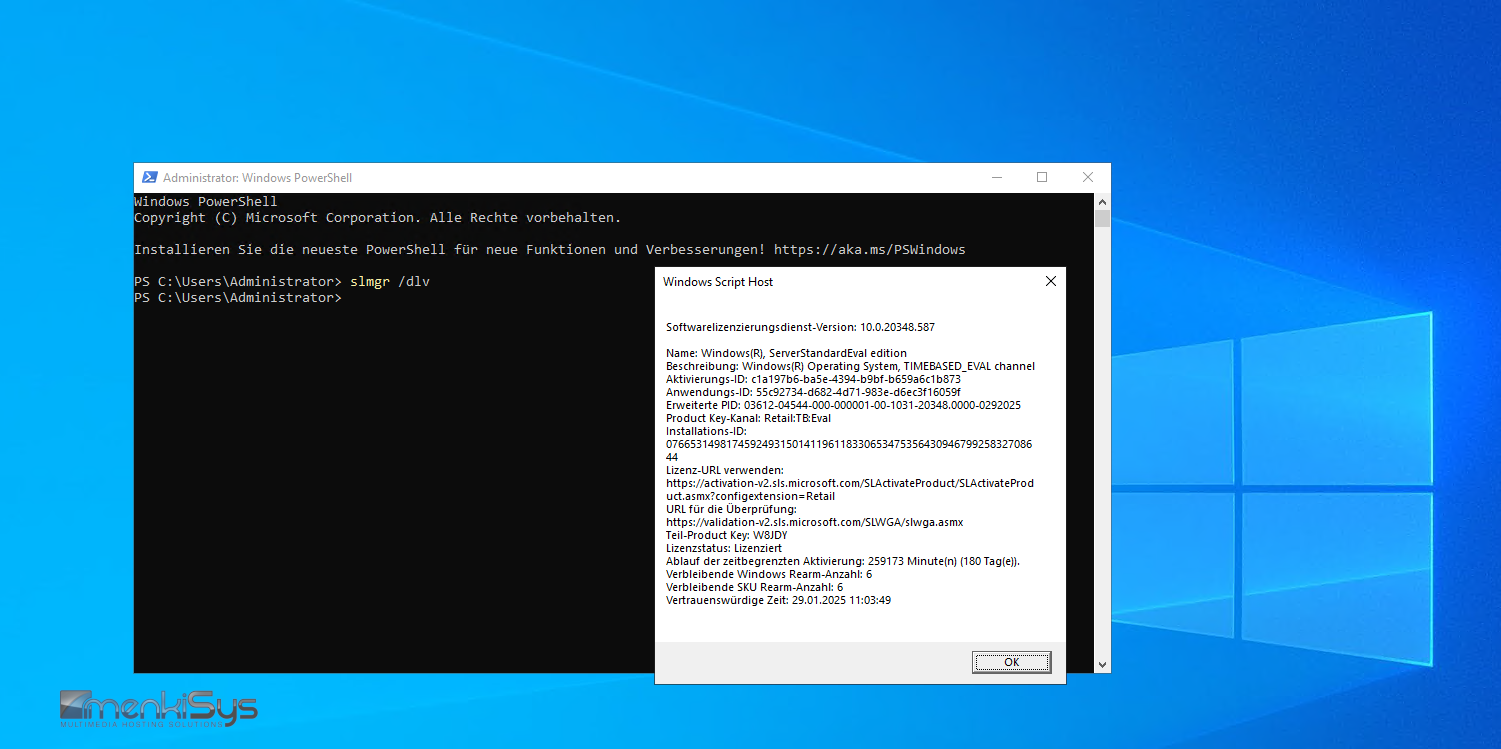
You can check the status of your trial license at any time using the command above.
After approximately 177 days (shortly before expiration), you must execute the following PowerShell command:
slmgr /rearm
Important: After running this command, you must restart your server to activate the extension.
This extension command can be executed up to 6 times (each time adding 180 days), resulting in a maximum trial usage period of approximately 36 months.
At any time, you can purchase a valid Windows Server license and activate it on your system. Alternatively, you can reinstall your server, which resets the trial period, allowing you to start a new evaluation cycle.